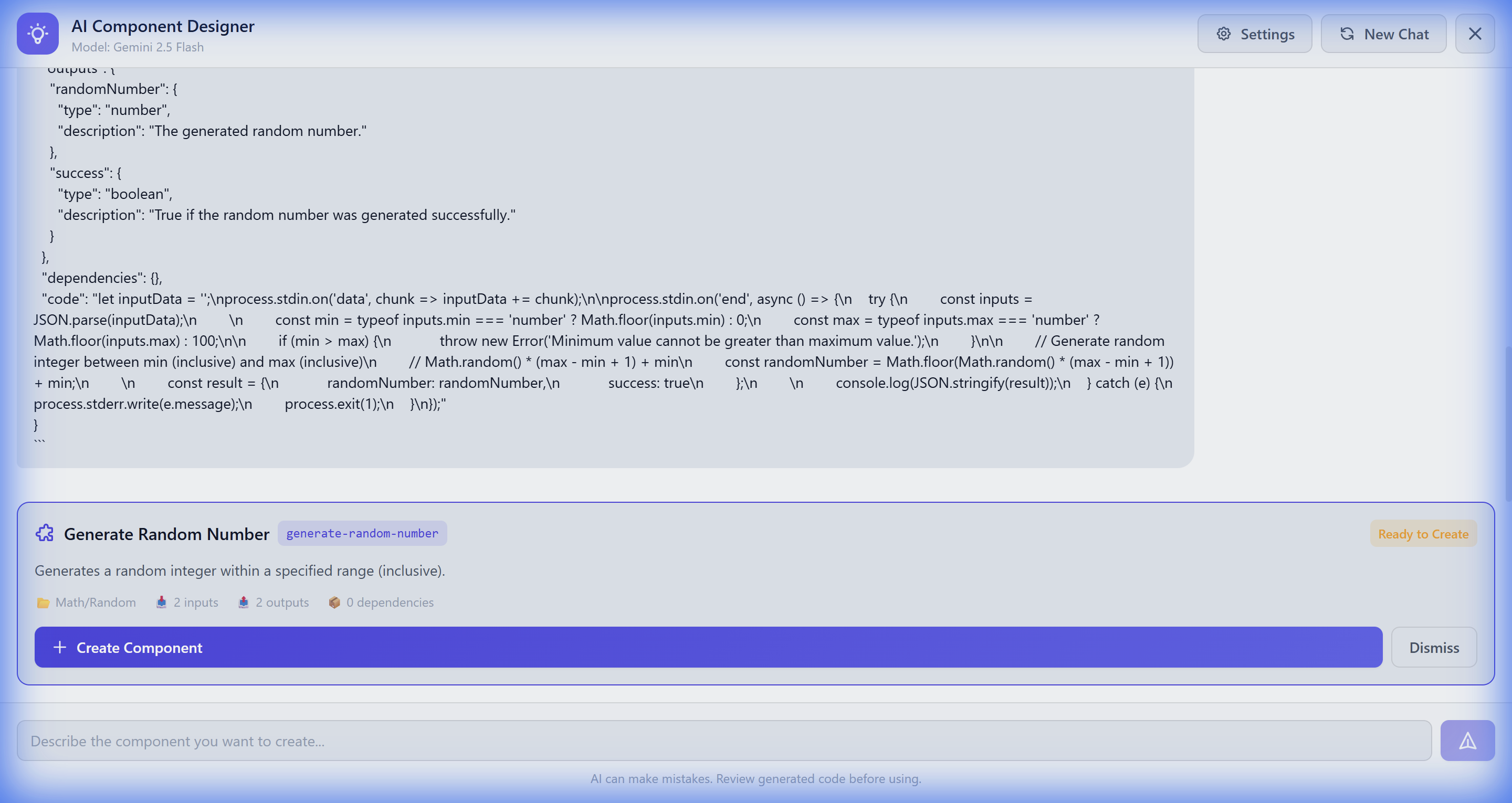
Manual Component Creation
You can also create components manually. Here's the structure:
📁 Component Structure
components/
└── my-component/
    ├── component.json    # Metadata & interface definition
    ├── index.js          # Execution logic
    └── package.json      # (optional) npm dependencies
📄 component.json Reference
{
  "name": "Display Name",
  "description": "What this component does",
  "category": "Category Name",
  "inputs": {
    "simpleInput": "string",
    "inputWithDefault": {
      "type": "string",
      "default": "default value"
    },
    "numberInput": "number",
    "objectInput": "object"
  },
  "outputs": {
    "result": "any",
    "success": "boolean"
  },
  "agentEnabled": true
}
| Field |
Description |
name |
Display name in the UI |
description |
Shown in tooltips and as AI tool description |
category |
Groups components in the sidebar |
inputs |
Input parameters (simple type or object with default) |
outputs |
Output fields available to downstream nodes |
agentEnabled |
If true, AI agents can use this as a tool |
⚙️ index.js Pattern
// Standard component pattern
let inputData = "";
process.stdin.on("data", chunk => { inputData += chunk; });

process.stdin.on("end", () => {
    try {
        // Parse inputs from stdin
        const inputs = JSON.parse(inputData);

        // Your component logic here
        const result = processData(inputs);

        // Output must be JSON with keys matching component.json outputs
        console.log(JSON.stringify({
            result: result,
            success: true
        }));
    } catch (e) {
        console.log(JSON.stringify({
            error: e.message,
            success: false
        }));
    }
});
📦 Adding Dependencies
If your component needs npm packages, add a package.json:
{
  "dependencies": {
    "axios": "^1.6.0",
    "lodash": "^4.17.21"
  }
}
Bee Flow automatically installs dependencies when the component is first loaded.