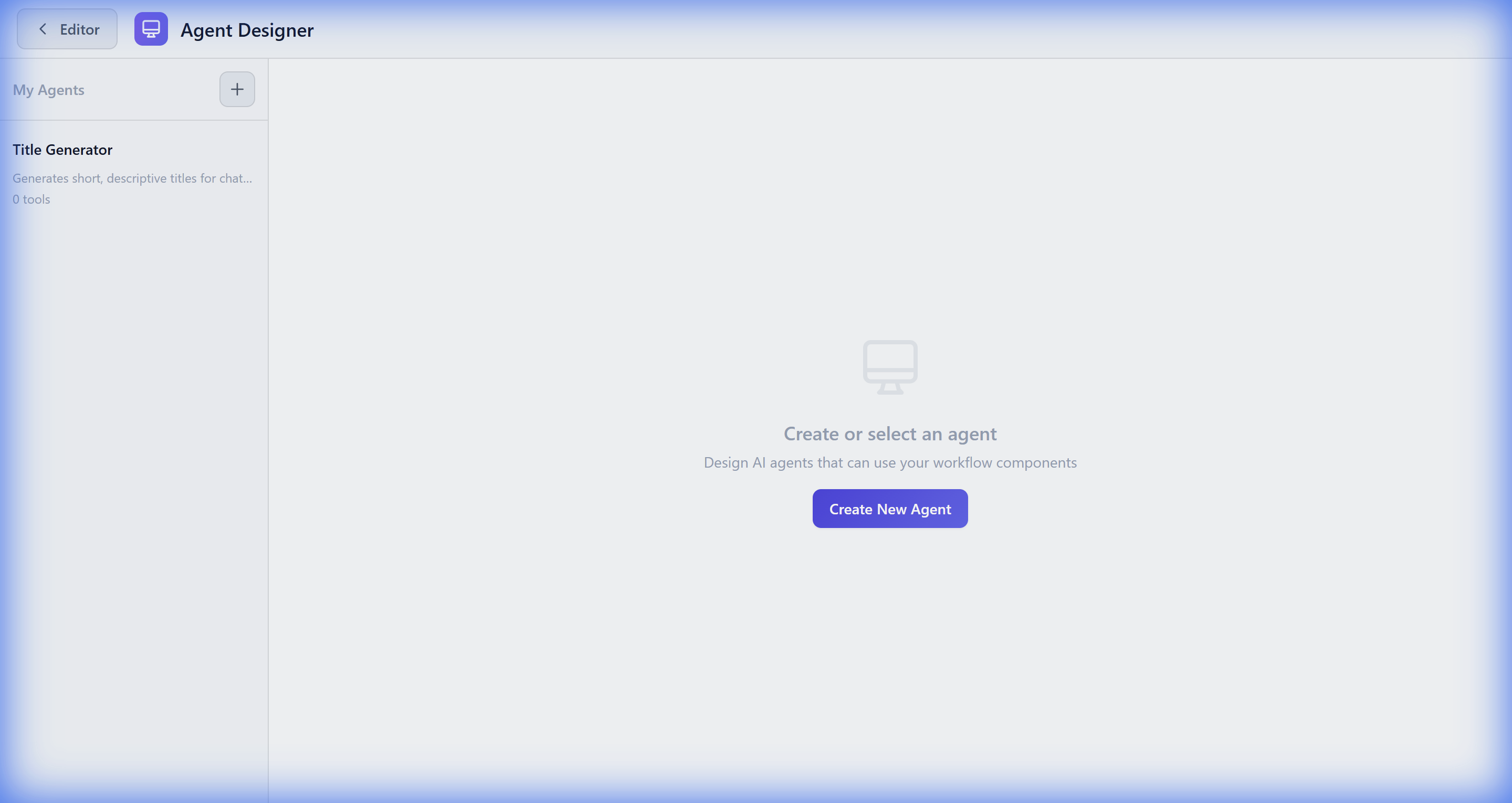
Agent Designer

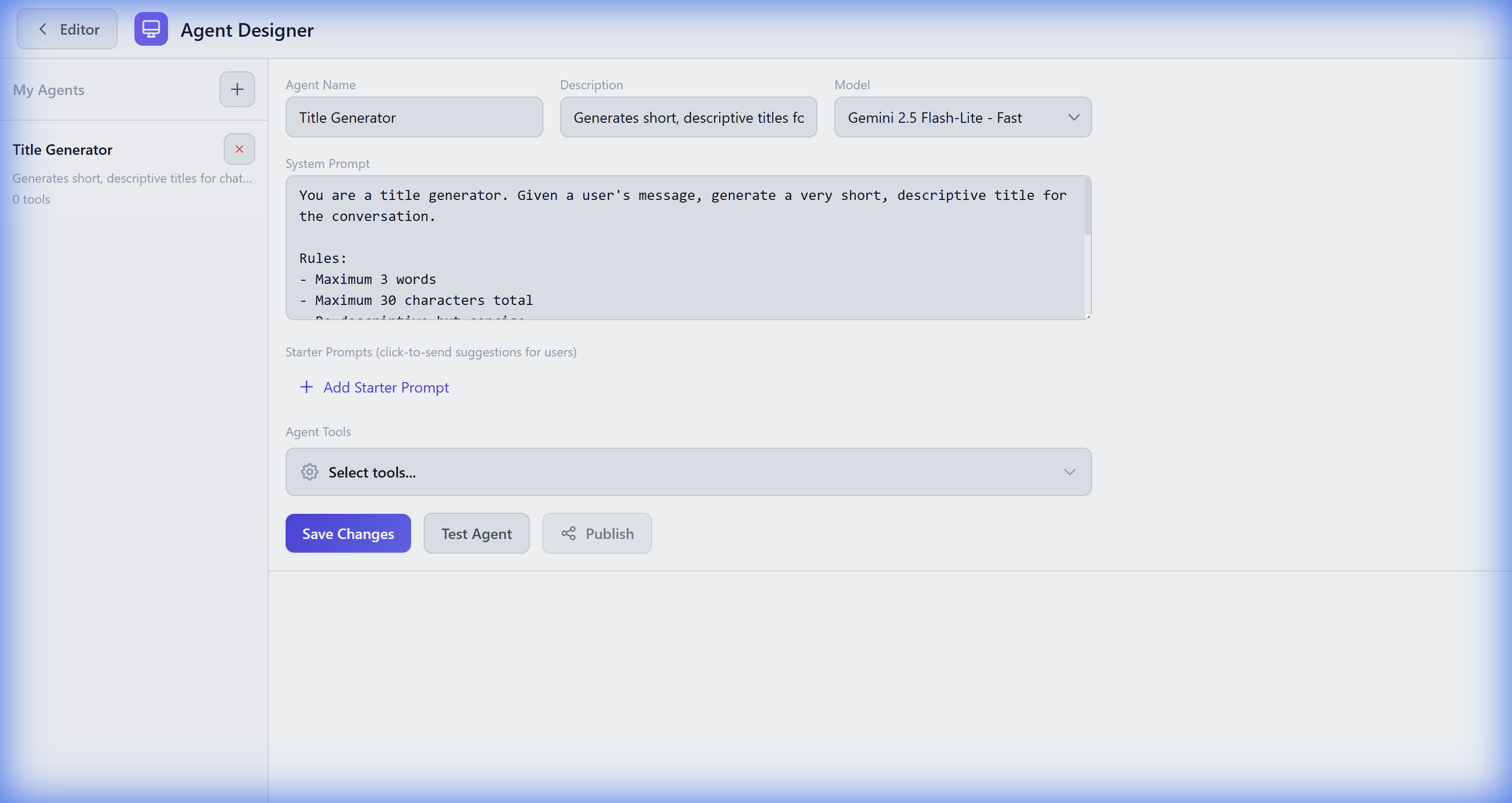
Design AI agents with custom personalities, knowledge bases, and tool access. Configure every aspect of how your agent behaves and what it can do.

  • ✓ Custom system prompts
  • ✓ Model selection (GPT-4, Claude, Gemini, local models)
  • ✓ Tool/component selection
  • ✓ Starter prompts for users
  • ✓ Publish/unpublish control
Agent Designer Interface

Agent Hub

A ChatGPT-like interface for interacting with your published agents. Users can have natural conversations while agents leverage your workflow components as tools.

  • ✓ Multiple conversations per agent
  • ✓ Auto-generated chat titles
  • ✓ Streaming responses
  • ✓ Tool call visualization
  • ✓ Starter prompt suggestions
Agent Hub Chat Interface

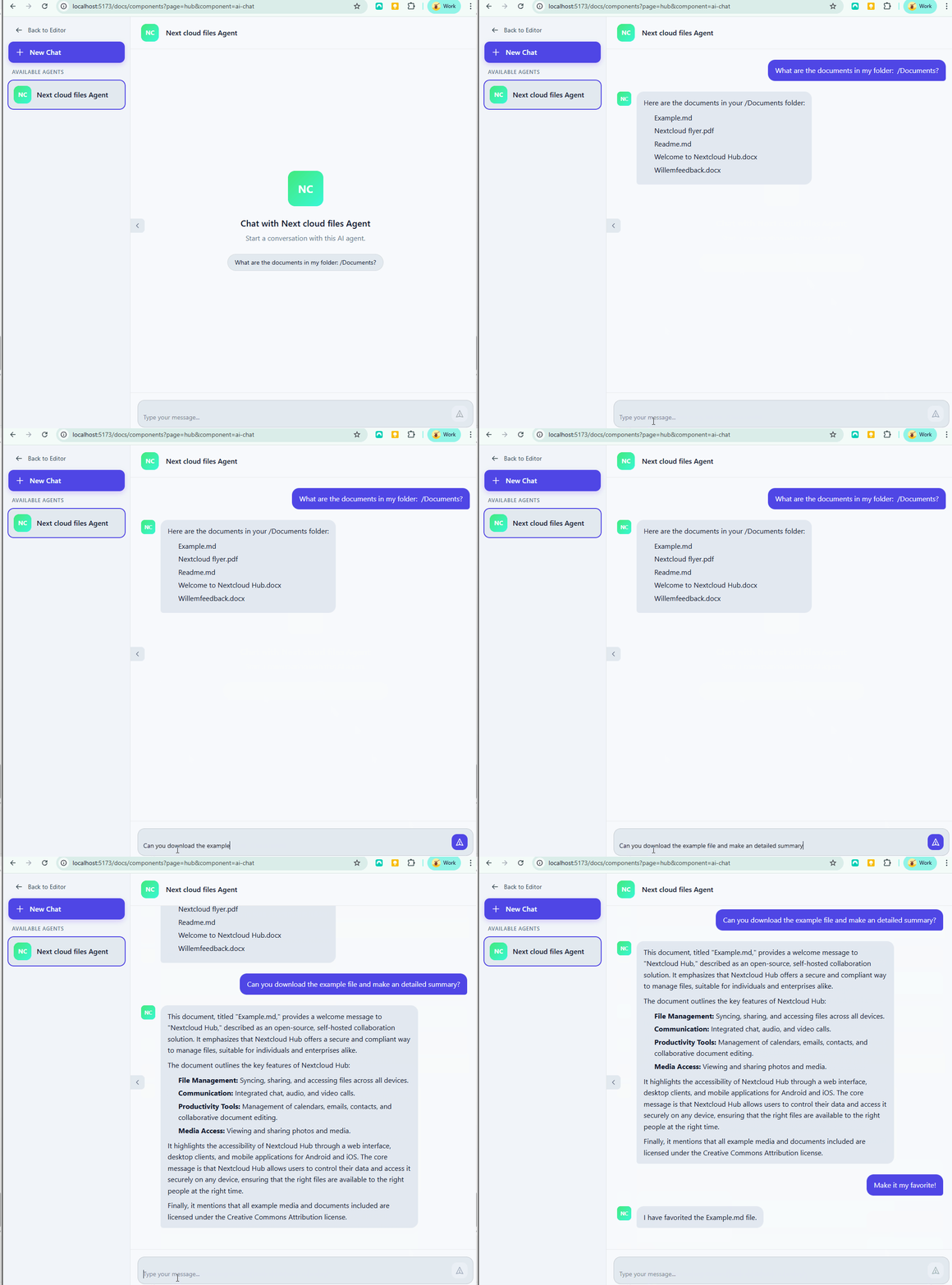
Example: Nextcloud Files Agent

Nextcloud Files Agent demo

This agent was built using the Agent Designer. It uses Nextcloud file components as tools to manage files through natural conversation.

Creating an Agent

Follow these steps to create a powerful AI agent:

1

Define the Persona

Write a system prompt that defines your agent's personality, expertise, and behavior guidelines.

Example:

"You are a helpful Nextcloud assistant. You can manage files, calendars, and notes. Always confirm before deleting anything."

2

Select a Model

Choose the AI model that powers your agent. Different models have different capabilities and costs.

  • GPT-4 - Best reasoning
  • Claude - Long context
  • Gemini - Fast & capable
  • Local - Privacy-focused
3

Add Tools

Select which components your agent can use. These become callable tools during conversations.

  • Workflow components with agentEnabled: true
  • Subworkflows as complex tools
  • Any custom components you create
4

Set Starter Prompts

Add helpful suggestions that appear when users start a new conversation.

  • "List my recent files"
  • "Create a new note"
  • "Show my calendar for today"

How Tool Calling Works

💬

User Message

"Upload my report.pdf to the Documents folder"

🧠

AI Reasoning

Agent decides to use the "Nextcloud File Upload" tool

⚙️

Tool Execution

Component runs with the specified parameters

Response

"Done! I've uploaded report.pdf to /Documents"

💡 Making Components Available as Tools

Set "agentEnabled": true in your component's component.json to make it available as a tool for AI agents. The component's description becomes the tool description, and inputs/outputs become the tool schema.

AI Provider Support

Bee Flow supports all major AI providers through a unified interface. Use cloud APIs or run locally for complete privacy.

☁️ Cloud Providers

  • OpenAI
  • Anthropic
  • Google Gemini
  • Mistral AI

🔄 AI Gateways

  • LiteLLM
  • Portkey
  • OpenRouter
  • TrueFoundry

🏠 Local AI

  • Ollama
  • LM Studio
  • GPT4All

🔒 Privacy First

Run models locally with Ollama or LM Studio for complete data privacy. Your data never leaves your infrastructure.

Best Practices

📝

Clear System Prompts

Be specific about what your agent should and shouldn't do. Include examples of ideal responses.

🔒

Limit Tool Access

Only give agents access to the tools they need. Less is more for security and focus.

🎯

Focused Agents

Create specialized agents for specific tasks rather than one agent that does everything.

💬

Good Starter Prompts

Help users understand what the agent can do by providing clear, actionable starter prompts.